Desk Ergonomics: Check and Set Up Your Home Office Workspace
Note: General business guidance only—not legal, tax, or financial advice. Verify details with official sources and qualified professionals.
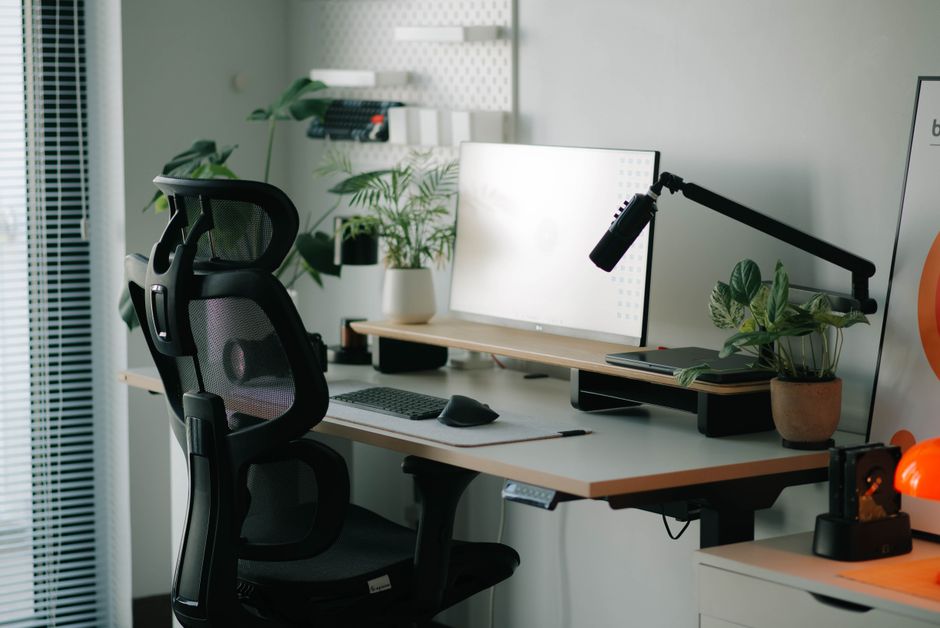
Desk ergonomics starts with a few measurable adjustments—not expensive gear. If you work from a home office, small changes to chair posture, monitor height, and wrist support can reduce strain during long screen sessions.
This field guide walks through what to check, in what order, and how to fix common setup mistakes without guessing.
Office Ergonomics: Your How-to Setup at Home
Home office ergonomics works best when you treat setup like a short checklist rather than a one-time purchase.
The goal is neutral posture: ears over shoulders, shoulders relaxed, elbows near 90 degrees, and feet flat on the floor or a stable footrest.
Start by clearing your desk surface so you can see your full reach zone. Place frequently used items within forearm distance.
Reserve the back of the desk for items you touch less often. If you share the space with family, mark your adjusted chair and monitor positions with tape or a photo so you can return to them quickly.
Before you tune hardware, confirm your home office software stack is reachable. When a Google app fails to load during a work session, the Google Workspace Help Center status page shows whether the outage is on Google's side—saving you from adjusting your chair when the real issue is connectivity.
Home office reach zones (top view)
├── Primary zone (forearm reach)
│ ├── Keyboard + mouse
│ ├── Notepad / phone
│ └── Water / pen cup
├── Secondary zone (full arm reach)
│ ├── Reference books
│ └── External drive
└── Storage zone (stand to reach) ├── Printer └── Archive folders
| Zone | Target distance | Note |
|---|---|---|
| Keyboard and mouse | Forearm length | Keep wrists straight, not bent up or down. |
| Monitor | Arm's length | Move closer only if text is hard to read after font scaling. |
| Phone and notepad | Same side as dominant hand | Reduces repeated trunk twists during calls. |
| Document holder | Between keyboard and monitor | Helpful when referencing paper while typing. |

Set Up Your Ergonomic Desk and Chair Posture
Chair posture is the foundation—get this wrong and every other adjustment fights against you. Sit all the way back so your lower back meets the chair's lumbar curve or a small rolled towel.
Thighs should be parallel to the floor with roughly two fingers of space behind your knees.
Adjust seat height so your elbows hang near 90 degrees when your forearms rest on the desk. If your feet do not reach the floor, use a footrest—stacked books work temporarily, but a stable platform is safer.
Armrests, if present, should support your forearms without pushing shoulders upward.
Desk height matters too. A fixed desk that is too tall forces raised shoulders; one that is too low encourages slumping.
If you cannot change desk height, raise your chair and add a footrest, or use a keyboard tray to lower typing height. Standing desks alternate well only when you still keep monitor height and wrist support consistent in both positions.
| Adjustment | What to check | Note |
|---|---|---|
| Seat height | Elbows at ~90° at desk | Shoulders stay relaxed, not shrugged. |
| Lumbar support | Curve fills lower back gap | Slouching forward usually means support is too low. |
| Seat depth | 2–3 fingers behind knee | Prevents pressure on the back of the legs. |
| Armrest height | Forearms parallel to floor | Too high lifts shoulders; too low invites leaning. |
Check Monitor Height and Screen Distance
Monitor height is the adjustment most people skip—and the one your neck notices first. Position the top of your screen at or slightly below eye level when you sit upright.
For dual monitors, align the tops and angle both toward your nose so you turn your head, not your whole torso.
Keep the screen about an arm's length away, then adjust zoom or font size if text feels small. Tilt the monitor back 10 to 20 degrees to reduce glare from windows or overhead lights.
If you use a laptop full time, raise it to eye level and add an external keyboard and mouse—otherwise wrist support and neck alignment work against each other.
The same monitor height rule many students learn in school health classes—top of screen at eye level—applies directly to your home office. That simple Monitor High School baseline is a useful starting point before you fine-tune for bifocals or a standing desk.
Google's troubleshooting thread explains that unauthorized IP or referer errors usually mean the key needs updated restrictions—not a monitor problem, but a common distraction during setup day.

Apply Wrist Support and Keyboard Placement Rules
Wrist support works only when your hands move over the keys, not when you rest on foam while typing. Place the keyboard so your wrists stay neutral—straight lines from forearm through hand.
A thin wrist rest can cushion breaks between typing bursts, but sustained pressure on the pad while active typing can compress nerves.
Keep the mouse at the same level as the keyboard and close enough that your elbow stays near your side. If you use a trackpad on a laptop, center your body to the spacebar rather than the screen offset.
For numeric-heavy work, a separate keypad lets you keep the main keyboard centered.
Mobile apps tied to your home office—calendar alerts, authenticator tools, VPN clients—need correct device permissions. Google's Play Help notes that you can manage app permissions for camera, contacts, and storage so work tools function without granting unnecessary access.
Voice-controlled devices can reduce repetitive reaching during focus blocks. To set up hands-free commands, the Assistant Help Center describes how to enable Voice Match through the Google Home app—useful when you want timers or quick lookups without breaking typing posture.
Hybrid and Shared Home Office Adjustments
Ever lost track of your settings after someone else uses your desk? Hybrid workers who split time between employer offices and home benefit from a portable checklist: seat height mark, monitor distance photo, and a saved document with chair model settings.
At the employer office, note your chair and monitor positions, then replicate measurements at home rather than guessing. If you hot-desk at work, bring a lumbar cushion and laptop riser that fit your bag.
Consistency between locations reduces the re-adjustment shock on Monday mornings.
Choosing between productivity suites affects how you organize files and calendars across locations. A Google Workspace community discussion compares Workspace and Gemini for daily workflows—worth reading when you standardize tools for both home and employer environments.

Pro tips
Most bottlenecks are small oversights, not missing equipment. Here are the issues I see most often when people say their setup still feels wrong after a full afternoon of tweaking.
Lighting glare beats monitor tilt every time. If you chase neck comfort by cranking monitor angle but a window sits behind you, fix the light path first—side lighting or blinds often solve what feels like a screen-height problem.
Document order matters for break reminders. Set recurring calendar events before you finalize desk height. It is easier to test posture during a real 25-minute work block than during a one-minute static pose.
Portal and app quirks interrupt posture more than people admit. Slow VPN logins or two-factor prompts often trigger the "lean forward and squint" habit. Keep authenticator apps on a phone stand at monitor height so you do not hunch to read codes.
Keyboard trays need knee clearance. Measure thigh-to-tray distance before drilling mounts. A tray that is too low forces wrist extension even when chair posture looks correct from across the room.
Photo your final settings. One picture of chair levers, monitor arm height, and footrest position saves twenty minutes after housemates borrow your chair—This approach is considered the industry standard for optimizing professional workflows.
Before you apply / consult
Apply ergonomic changes one variable at a time so you know what actually helped. Changing chair height, monitor arm, and keyboard angle in one pass makes it impossible to tell which fix reduced discomfort—and that leads people to buy gear they do not need.
Misread rules that cause setbacks: resting on wrist pads while typing (support is for pauses, not active keystrokes); raising a laptop without an external keyboard (fixes neck, harms wrists); standing all day without anti-fatigue mat or seat breaks (trades one strain for another).
Denial reasons for professional consult requests often come down to documentation. If you seek an employer accommodation or occupational review, bring dated photos, chair model numbers, and a symptom log tied to specific tasks—not a vague note that "the desk hurts."
Re-check list before you call it done:
- Feet flat or supported; thighs parallel to floor
- Top of monitor at or slightly below eye level
- Keyboard and mouse at elbow height; wrists neutral
- Shoulders relaxed; no habitual forward head
- Break timer running; glare sources addressed
- Shared-desk markers saved if others use the space
desk ergonomics is maintenance, not a weekend project. Revisit your home office setup when you change chairs, add a second monitor, or switch from sitting to standing—even small hardware swaps can undo a week of careful adjustment.
You will thank yourself for a ten-minute quarterly check.
(Updated: 2026.07.05)
Frequently Asked Questions
How should I adjust my chair for long work sessions?
Feet flat, knees near 90 degrees, lumbar support filling the lower back curve. Armrests should let shoulders stay relaxed, not shrugged.
What desk setup changes matter most for a home office?
Stable chair, correct monitor height, adequate lighting, and cable management so you are not reaching awkwardly. Adjust one element at a time and note comfort.
What monitor height reduces neck strain at a desk?
Top of the screen at or slightly below eye level, about an arm's length away. Use a stand or books if the monitor sits too low on the desk.
How often should I take movement breaks during desk work?
Stand, stretch, or walk briefly every 30–45 minutes. Short breaks improve focus and reduce stiffness more than one long break.
What wrist and keyboard position helps prevent repetitive strain?
Keep wrists neutral—not bent up or down—with elbows near 90 degrees. A negative-tilt keyboard tray or lower desk height often helps.
Official Ergonomics & Workstation Sources
The steps below are cross-checked against 2 official references.
- cdc.gov provides official guidance on this topic.cdc.gov
- osha.gov offers reference material you can cross-check for this topic.osha.gov
Official criteria may update — double-check each source before you rely on it.
Do you have a solo-business tool stack or workflow tip that saved you time? Share it in the comments—readers learn best from real setups.


Comments
Post a Comment